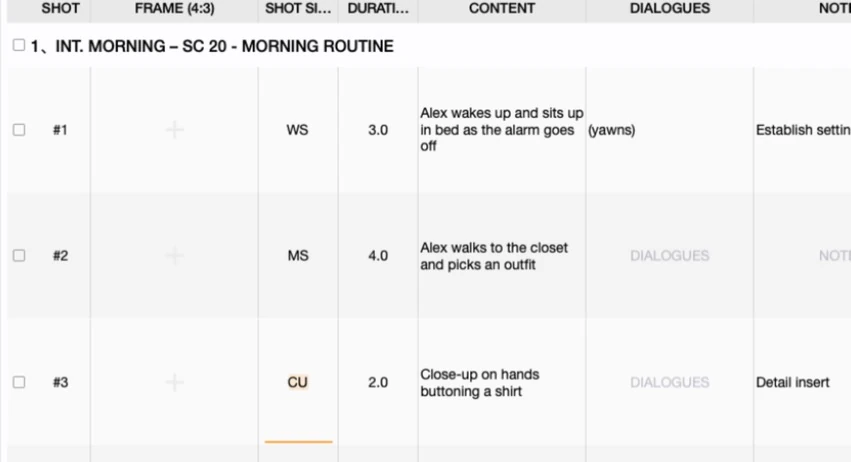

Most teleprompters are text boxes that scroll. They know nothing about the shoot — not which shot you are on, not how big the frame is, not whose line is next. Previs Shot's teleprompter reads from the shot list, which means every line arrives carrying its shot number, shot size and angle. This tutorial covers what that actually changes on set, how to prompt one actor without the other's lines in the way, and when to skip the shot list entirely and just paste a script.
Can a teleprompter show the shot size and camera angle next to each line?
Short answer: in Previs Shot, yes — because the prompt is built from the shot list rather than pasted into it. Each section of the reading view is headed with the shot number and its technical fields, so the person reading and the person operating are looking at the same shot.
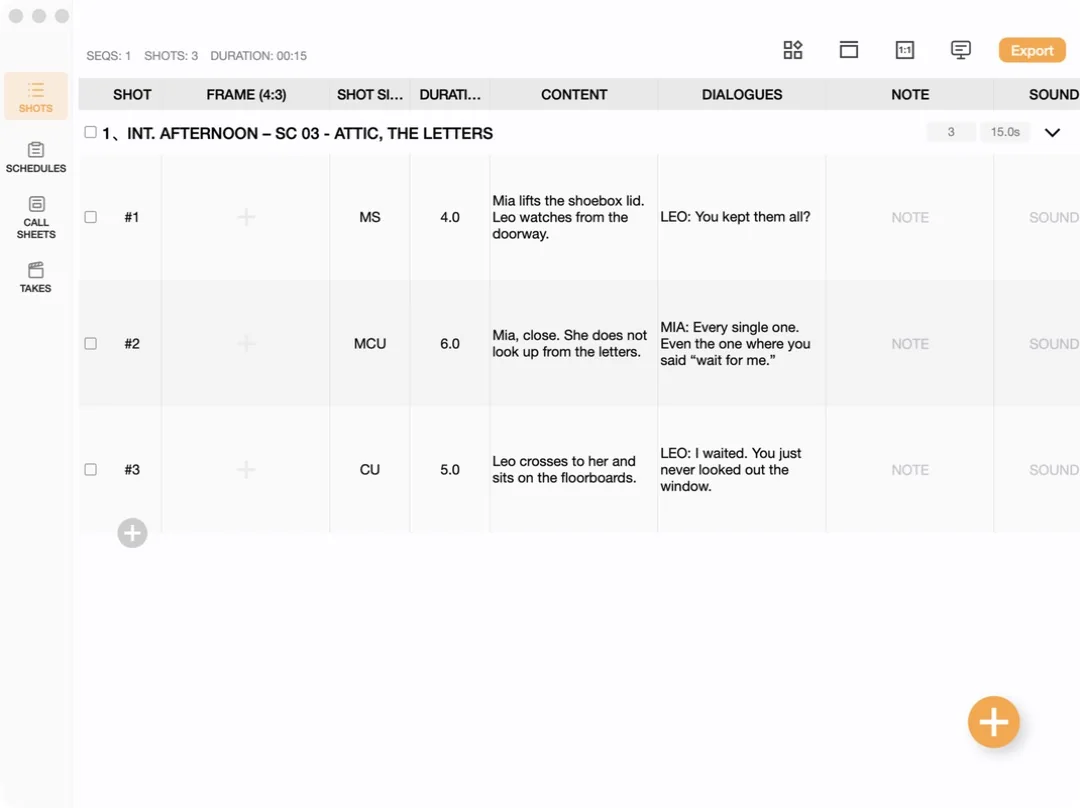
Start in SHOTS. Fill in CONTENT (what happens) and DIALOGUES (what is said) as you normally would, then press the Teleprompter button in the toolbar, just left of Export.
Here is the result. Notice the header on each block: #1.1 Medium Shot · OTS · Static, then the action, then the role name, then the line.
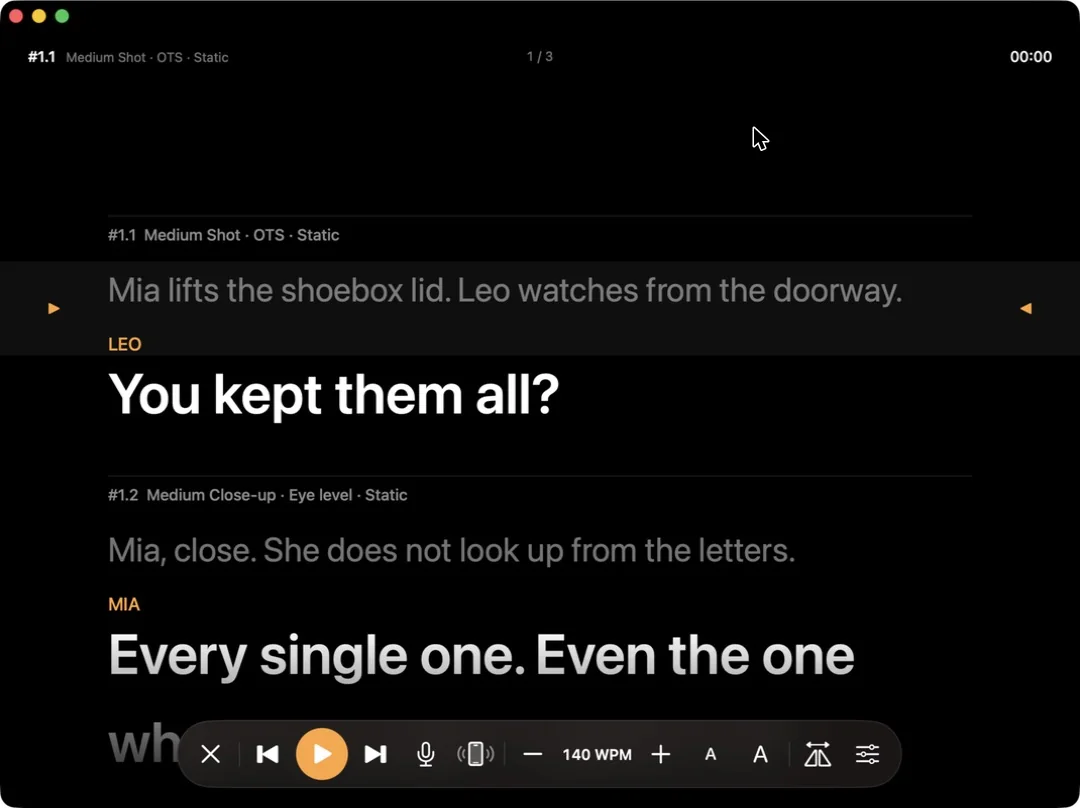
1 / 3).That header is the whole point. "Medium Shot · OTS" tells the actor the camera is over someone's shoulder at medium size, which is the difference between playing to the lens and playing to the other actor. On a scrolling text box that information lives on a separate printout, or in someone's memory.
The control bar carries what you would expect from a prompter app: play and step, speed in WPM with a live readout, text size, voice tracking from the microphone, an iPhone as a remote, and a horizontal flip for a beam-splitter mirror rig.
How do I prompt only one actor's lines?
Short answer: pick that role under Roles in Prompter Setup. The other roles' dialogue drops out of the prompt while the action description stays, so the actor still knows what is happening around their line.
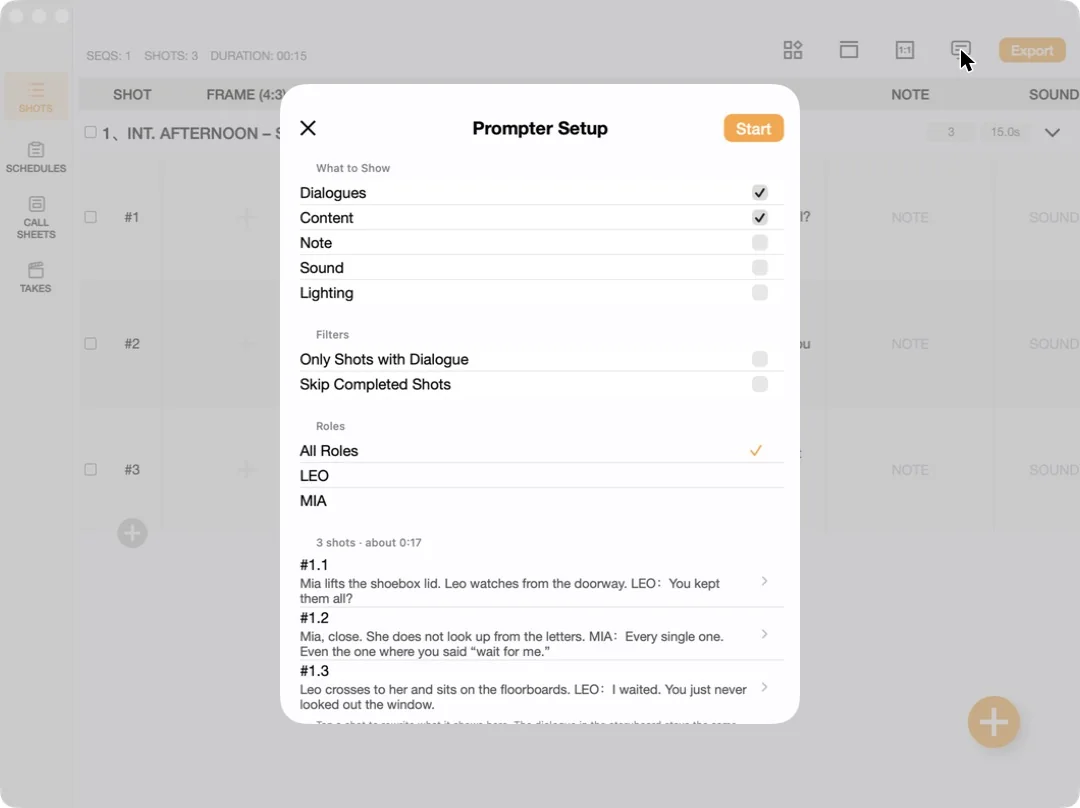
Prompter Setup is where you decide what the prompt is made of. What to Show turns each field on or off — Dialogues and Content by default, with Note, Sound and Lighting available when the person reading needs them.
Now select LEO. Same three shots, but the estimate drops to 0:12 and shot #1.2 — which is Mia's line — is reduced to its action description only.
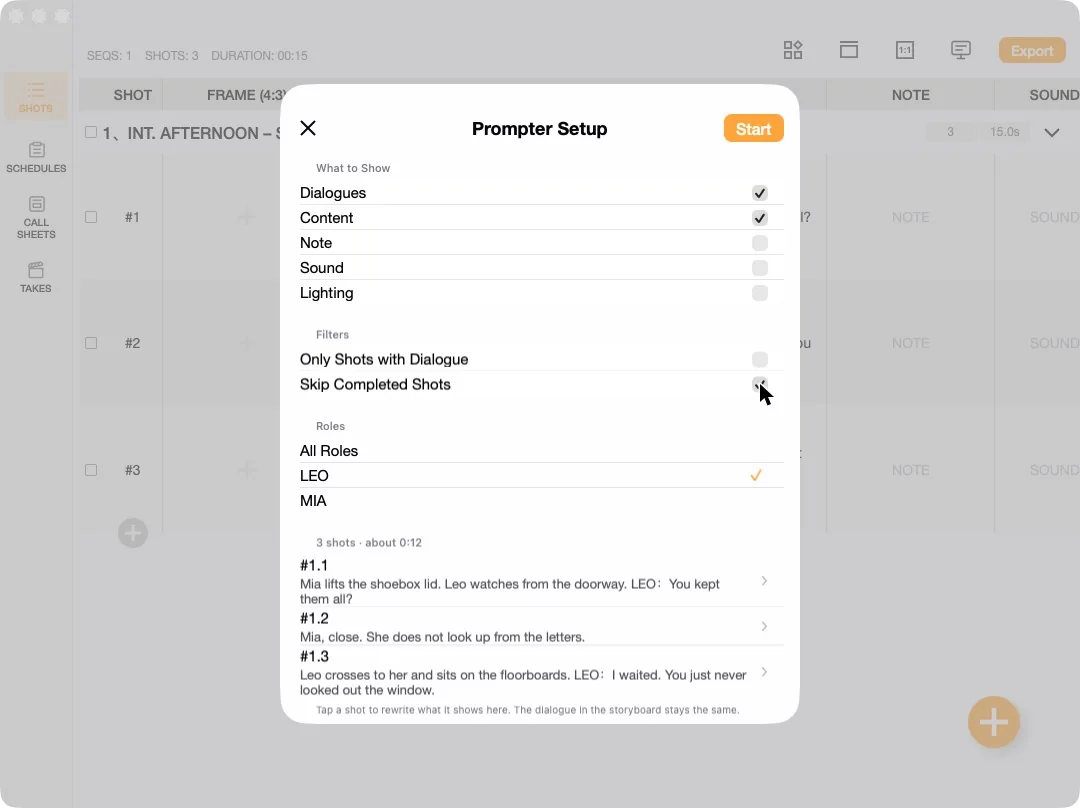
#1.2; the shot itself stays, so the sequence of events is still intact.This is the behaviour you want for a two-hander where you are shooting one side of the coverage. The actor on camera is not reading past someone else's speech to find their own, but they also are not blind to the beat that cues them.
Two things worth knowing about the panel:
- The preview is the truth. The line under Roles —
3 shots · about 0:17— and the list below it show exactly what will be read, in order. Check it before you start rather than discovering a missing line on set. - Rewrites do not touch the storyboard. Tap any shot in that preview to reword what the prompter says. As the panel itself puts it: the dialogue in the storyboard stays the same. The prompt is a reading of the shot list, not a second copy of it.
Does the teleprompter skip shots I have already shot?
Short answer: there is a filter for it. Under Filters, Skip Completed Shots drops finished shots from the run, and Only Shots with Dialogue drops the ones nobody speaks in.
Both matter most on a pickup day, when two thirds of the scene is already in the can and you only need the remaining coverage. Rather than scrolling past what you shot last week, you narrow the run to what is left — and then confirm it against the preview list before you hit Start, which is the habit worth building here.
Only Shots with Dialogue is the one to reach for when a scene is mostly visual. A sequence of fifteen shots with four lines in it becomes a four-item prompt instead of eleven blank screens.
Do I need a project at all?
Short answer: no. Scripts in the sidebar is a standalone teleprompter — paste text, import a file, or start blank, with no project attached.
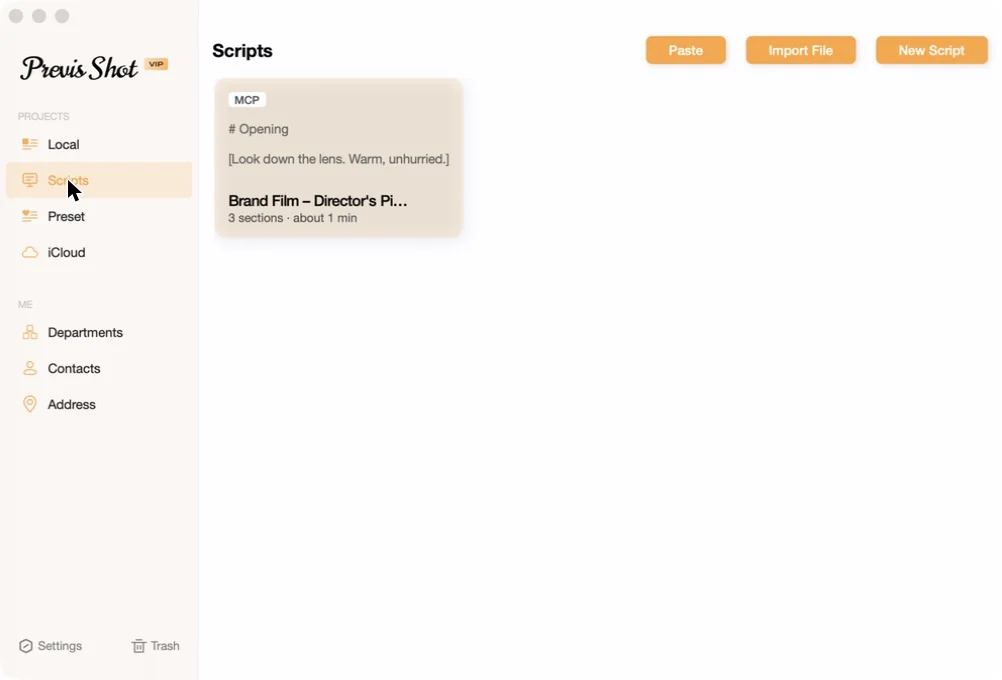
MCP badge marks scripts created by an assistant over MCP rather than typed in.Use it for anything read to camera that is not scene coverage — a piece to camera, interview questions, a voice-over, a product walkthrough. Two conventions make the text behave:
ROLE: lineis shown as that role's dialogue, the same way a role reads in the shot-list prompter.- Text in
[square brackets]is shown as a cue and not read aloud — stage directions, eyelines, "hold for two seconds".
Sections, which are what you page through, come from blank lines by default, or from headings like # Intro or INT. OFFICE - DAY if you would rather the script's own structure decide.
Which one should you use?
- Shot list prompter when the thing being read belongs to a shot — drama, dialogue scenes, anything where the frame and the angle change the performance.
- Scripts when the camera does not move and there is nothing to schedule — a founder reading to a lens, a tutorial narration, a talking head.
- Both on a shoot that has a scripted segment and an interview segment. They live in the same app, so the WPM, text size and mirror settings you got right once carry over.
If you are reading your lines off a laptop propped behind the camera, the mirror flip plus an iPhone as a remote is the cheapest real upgrade available: a beam-splitter rig turns the same screen into a proper prompter, and the remote means nobody has to crouch under the lens to hit next.
Related reading: Shot List Basics for the CONTENT and DIALOGUES fields the prompter reads from, Shot Sizes and Shot Types for the vocabulary in those section headers, and Previs Shot and MCP for building scripts and shot lists by asking an assistant. There is also a free web teleprompter that runs in a browser with no account, for when you are not at your own machine.