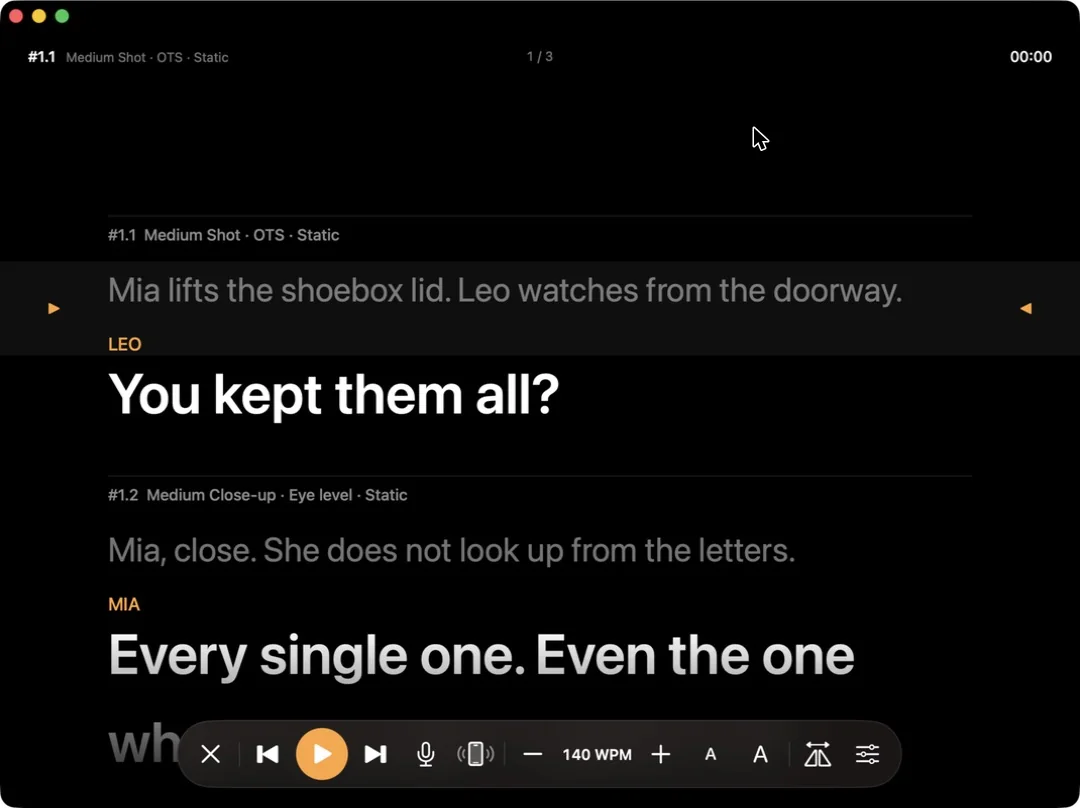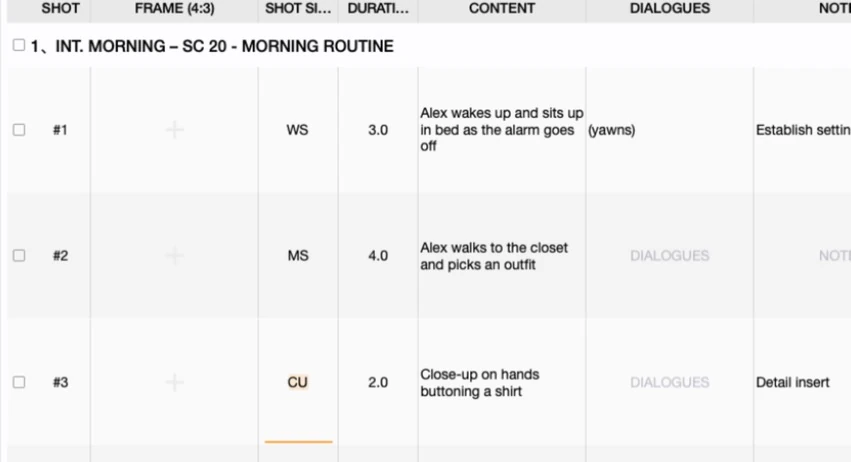

Two assistant directors storyboard the same day from opposite ends of the script. You keep an iCloud backup of a project and a local copy quietly drift apart. A director wants "the other unit's shots" folded into the main cut. Previs Shot has one feature for all of this: Merge Previs Project. This tutorial shows exactly what it does, what survives, and what to watch out for.
1. Why You'd Ever Merge Two Projects
A storyboard project is a single self-contained file, so splitting work across two people naturally means splitting it across two projects too — a second unit blocks a chase on one machine while the main unit blocks dialogue scenes on another. Sooner or later those two need to become one shot list again. The same need shows up whenever a project exists in two places that have drifted apart: a local copy and an iCloud backup, or a file someone sent you that overlaps with one you already have.
Previs Shot doesn't ask you to copy scenes over by hand. It reads the scenes and shots out of a second project file and appends them into the one you're keeping.
2. Where the Feature Lives
Every project in your Local list has the same right-click menu: Export Previs Project, Merge Previs Project, Make Preset, Rename, Duplicate, Move to Trash.
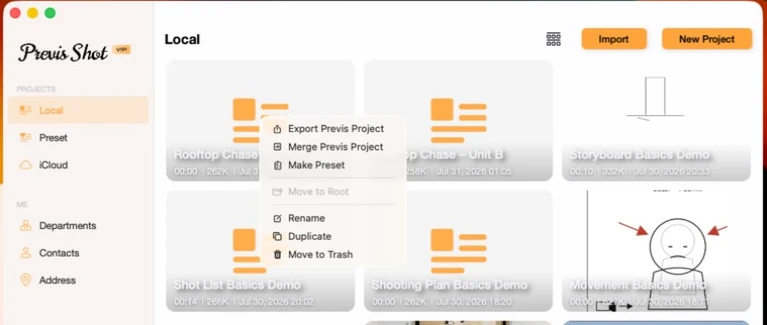
The project you right-click is the one that stays open conceptually — you're choosing which other project(s) to fold into it.
3. Picking What to Merge In
Clicking Merge Previs Project opens a picker listing every other local project, each with a radio button. You can select more than one — every project you tap gets added as a chip at the bottom, next to the source project's own chip, and the button label updates to Merge (N).
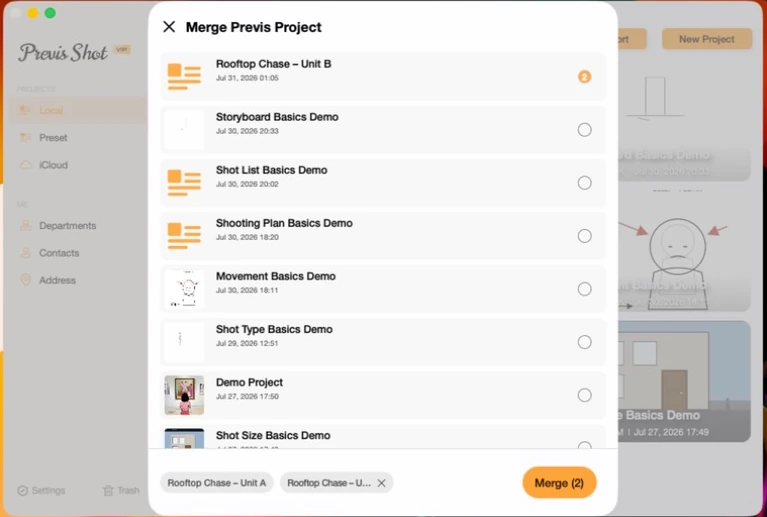
In this real example, Unit A held one scene — SC 14, EXT. DAY, Rooftop Chase — and Unit B held the very next scene, SC 15, EXT. NIGHT, Alley Escape, shot separately by a second unit. Selecting Unit B and clicking Merge combines both into a single shot list.
4. What Actually Happens When You Click Merge
Previs Shot doesn't overwrite either original project. It creates a brand-new project (named something like MergeYYYYMMDD-NNN by default) containing every scene and shot from all the projects you picked, in order, and leaves "Rooftop Chase – Unit A" and "Rooftop Chase – Unit B" untouched in your Local list.
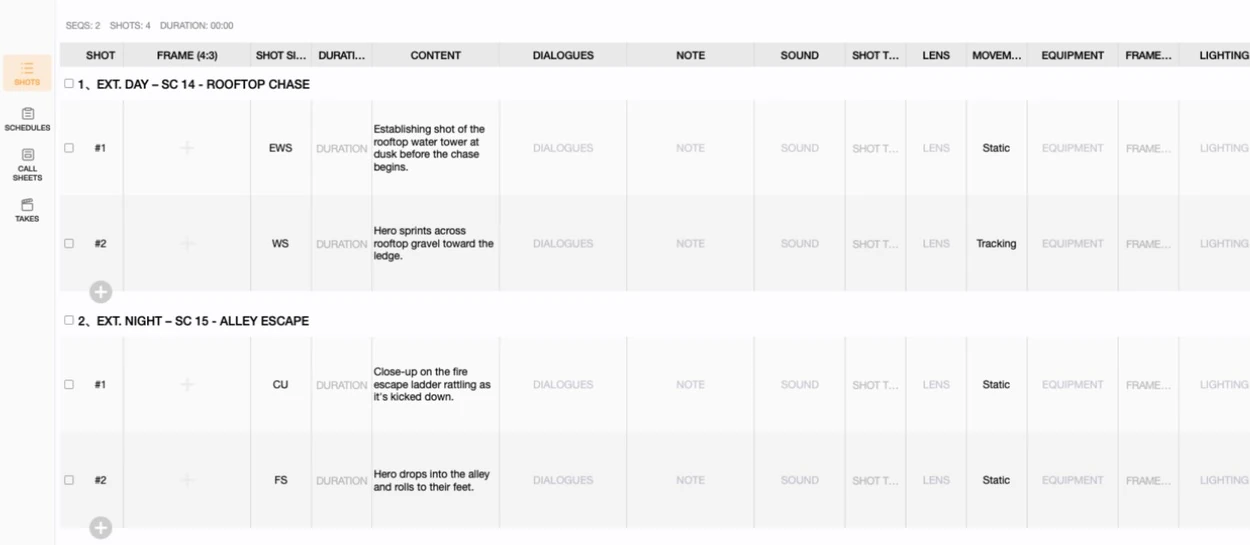
Rename the new project right away (right-click → Rename) — the auto-generated name is only meant as a placeholder.
5. Merging a Project That Came From iCloud
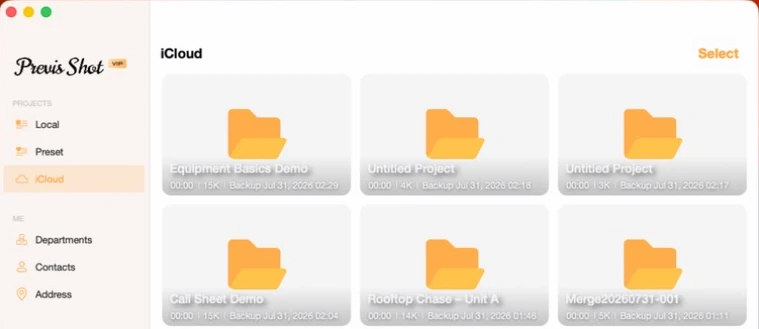
Every local project quietly keeps a matching entry in the iCloud tab, labeled with its last backup time. Right-clicking one of those only offers Download and Delete — and Download is greyed out whenever you already have that exact project locally, since there's nothing to pull down.
Where this gets interesting is a project that exists only in iCloud — synced from another Mac, or recovered after being removed locally. Downloading one of those, or re-importing a project file that happens to match one you already have, triggers the same duplicate check under the hood:
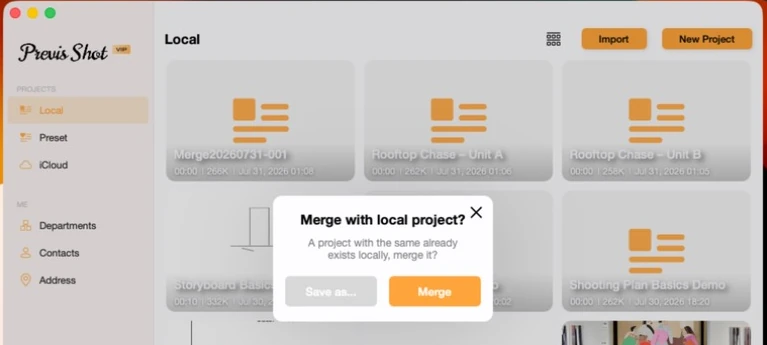
- Merge: folds the incoming scenes and shots straight into your existing local project — the same operation covered in section 4, just triggered from a download or import instead of a right-click.
- Save as…: keeps both as fully independent projects, so you can compare them side by side or merge them deliberately later, on your own terms.
6. Things Worth Knowing Before You Merge
- Merge is additive, not smart. It appends scenes and shots; it doesn't detect that two scenes are "the same" and skip duplicates. Merging the same pair twice doubles everything up, so treat it as a one-time operation per pair of projects.
- Nothing is destroyed. Because the result always lands in a new project, a merge you don't like costs you nothing more than deleting that new project and trying again.
- Merge only sees local projects. To combine a project with one that lives on someone else's computer (not your iCloud), send them the
.previsfile first — see our Export & Import Basics tutorial — then merge as usual once it's imported.
This tutorial is part of the Previs Shot tutorial series. Once you've combined two projects, our Shot List Basics tutorial covers everything you can do with the resulting shot list, and Copying, Deleting and Editing Shots covers cleaning up duplicates by hand if a merge brings in more than you need.