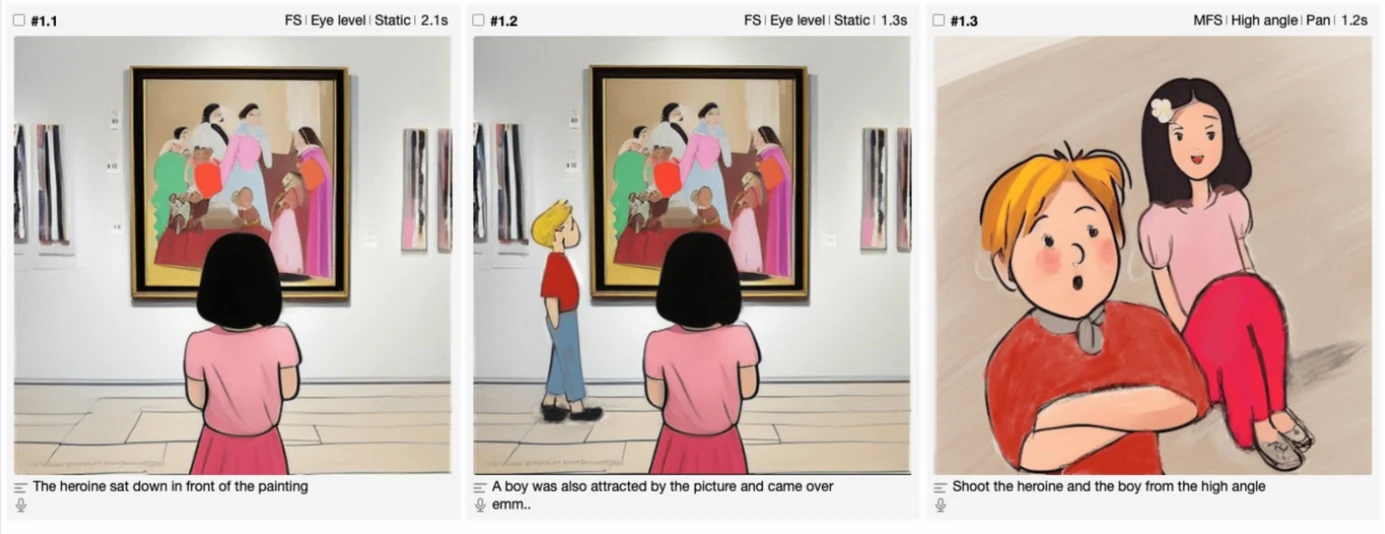

A shot is what you planned. A take is what actually happened when you rolled camera — and on a busy day, shot 4 might have five takes before anyone's happy with it. This tutorial covers the TAKES view and the Continuity Logs report: how Previs Shot numbers takes the way a real camera department would, how to score and annotate them, and how to see the whole day's coverage in one place.
1. A Take Is Not a Shot
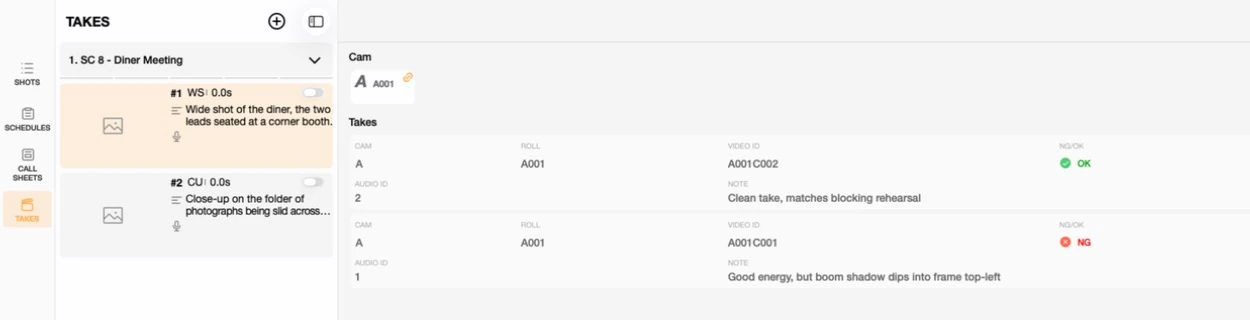
SHOTS describes what you're planning to film. TAKES records what actually happened each time you rolled — which one had the boom in frame, which one the director loved, which one needs an ADR fix later. A shot with three takes has one row in SHOTS and three rows in TAKES.
2. Logging a Take
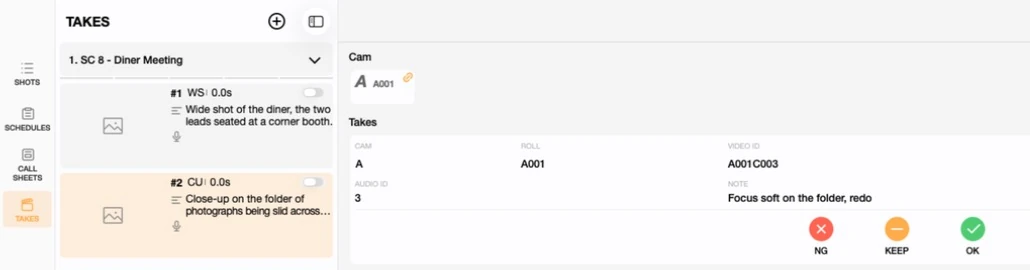
Open TAKES from the sidebar, pick a shot from the list on the left, and add a take. Previs Shot numbers everything the way an on-set camera department actually does: a take number, a camera roll (A001), and a video ID that increments per camera (A001C001, A001C002…) — you don't type any of this by hand.
3. Scoring: NG, KEEP, OK
Every take gets one tap of a rating: NG (no good), KEEP (worth holding onto, not the top pick) or OK (the one). Add a note alongside it — what went wrong, what was different, anything the editor or a reshoot will need to know later.
4. Continuity Logs: Every Take, Across Every Scene
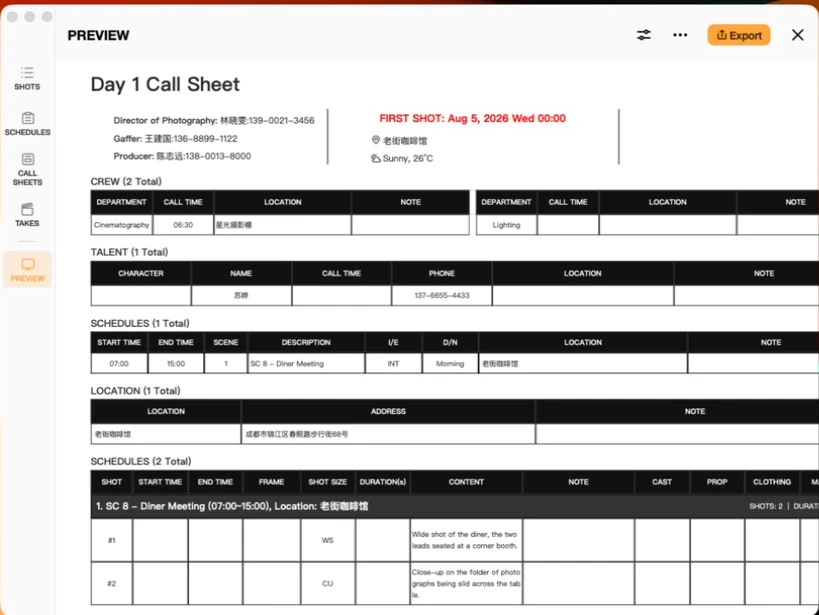
Click Continuity Logs in the top-right of the TAKES view to see every take across the shooting day (or a chosen set of scenes) in one flat, timestamped table — exactly the kind of log a script supervisor keeps by hand, generated automatically as you score takes.
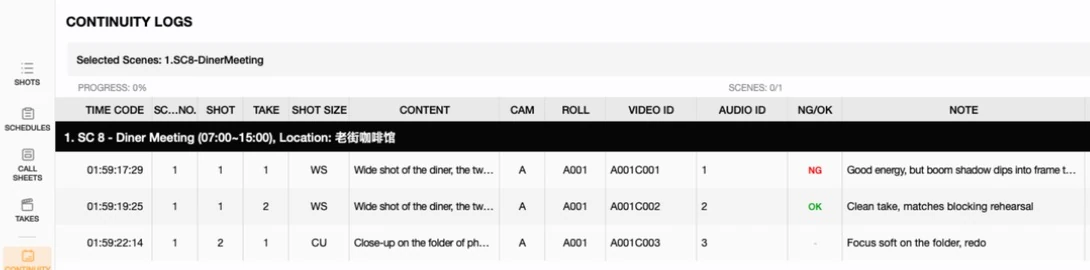
The report can be scoped to whichever scenes you pick, and exported the same way a call sheet or shot list is — a document you can hand to editorial alongside the footage, so they know before they even open a bin which takes are worth their time.
5. A Few Practical Notes
- Log as you go, not at wrap. The value of a continuity log comes from catching a wardrobe or prop mismatch between takes while you can still reshoot it, not from reconstructing the day afterward.
- Camera and roll numbering isn't editable by hand. It follows the same rules a real camera department uses, so it can't drift out of sync — only the note is yours to edit after the fact.
- NG doesn't mean delete. An NG take stays in the log; it just tells editorial not to bother pulling it first.
This tutorial is part of the Previs Shot tutorial series. Takes are logged against the shots covered in our Shot List Basics tutorial, and a shooting day's takes line up with the schedule entries from Shooting Plan Basics.